Settings
The settings screen is the organisation-level control panel — manage your project members, their
roles and permissions, your account profile, and organisation preferences. It lives outside the
project context at /settings.
What you see
Section titled “What you see”Account tab
Section titled “Account tab”The landing tab shows your personal profile — name, email, SSO provider, and MFA status. The Edit button opens a form sheet where you can update your display name. Email and SSO identity are managed by your identity provider (OIDC / SAML) and are read-only in HydroScope.
The Security section lets you manage multi-factor authentication. Supported methods include TOTP authenticator apps and passkeys (FIDO2/WebAuthn). Each method can be enrolled or removed independently.
Members tab
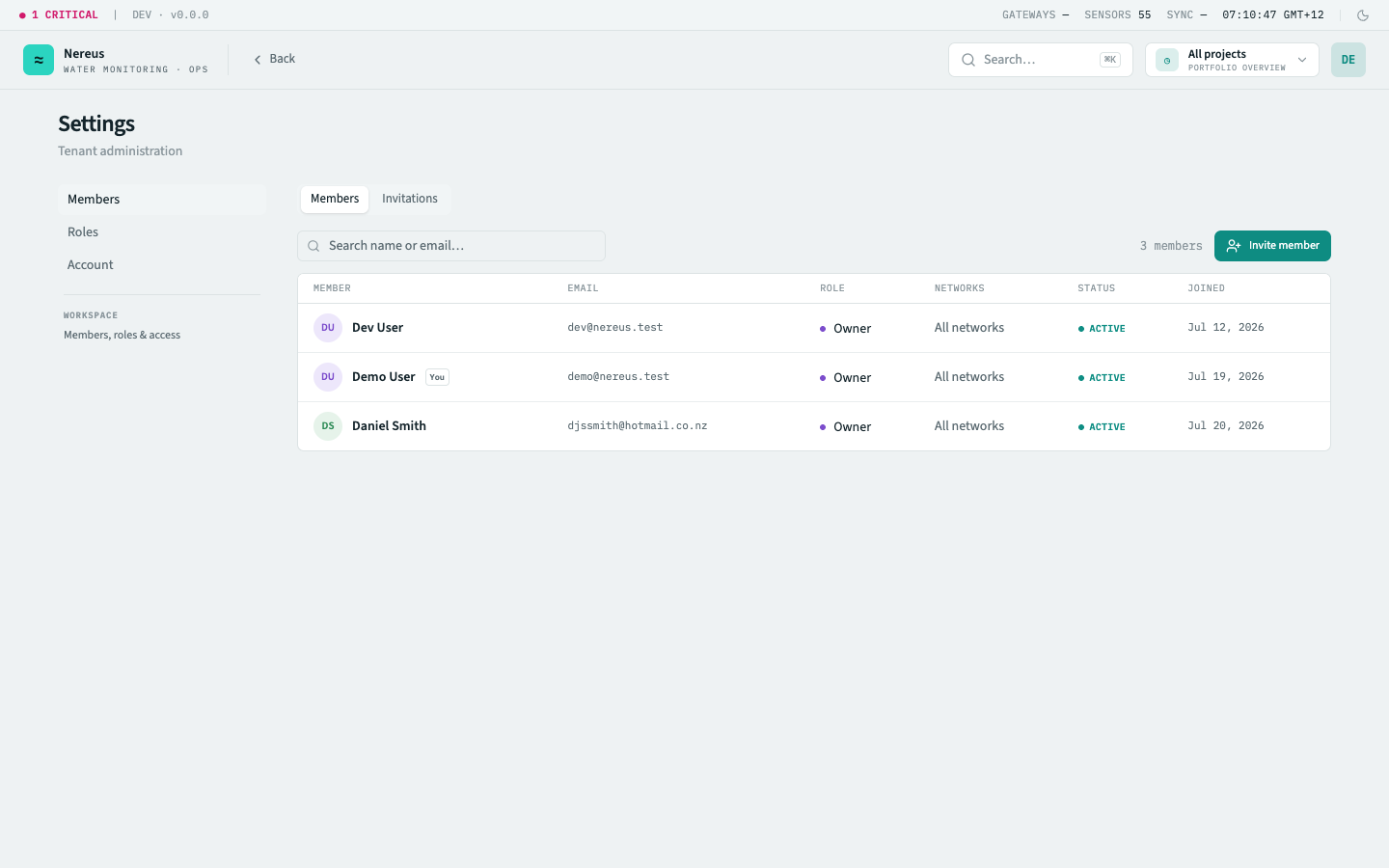
Section titled “Members tab”A table of every member in the organisation with columns for name, email, role, and status (active / suspended / pending invite). The search bar filters by name and email.
Roles control what a member can see and do:
| Role | What they can do |
|---|---|
| Owner | Everything an Admin can, plus manage the organisation itself (e.g. delete it) |
| Admin | Everything an Engineer can, plus invite and manage members and grant roles |
| Engineer | Everything an Operator can, plus edit alert rules, manage assets and sensors, edit dashboards, edit reports, and manage billing and tariffs |
| Operator | Everything a Viewer can, plus acknowledge alerts |
| Viewer | Read-only access to dashboards, reports, telemetry, alerts, members, and billing |
Each role is a strict superset of the one below it. Roles are granted at a scope — the whole organisation, a single project, or an asset group — so the same person can be an Engineer on one project and a Viewer elsewhere. Admins can promote, demote, or suspend any member except the Owner.
The + button in the toolbar opens an invite form — enter an email address, select a role, and send the invitation. The invitee receives an email with a sign-up link. Pending invites appear in the table with a “pending” badge and can be revoked.
Billing tab
Section titled “Billing tab”The billing tab shows the organisation’s current plan, usage against limits, and invoice history. It mirrors the billing screen but at the organisation level — plan management, payment method, and invoice downloads.
Preferences tab
Section titled “Preferences tab”Organisation-wide preferences: default timezone (used for alert schedules and report generation), date format, and measurement units (metric / imperial). These affect how values are formatted in dashboards and reports across all projects.
Key interactions
Section titled “Key interactions”Invite a member — opens a form with email, role picker, and an optional message. The invitation email is sent immediately.
Edit role — click any member’s role badge to open a role picker. Role changes take effect immediately — the member sees the updated capabilities on their next page load.
Suspend / reactivate — the overflow menu on each member row. Suspended members cannot log in but their history (alert acknowledgements, report activity) is preserved.
Remove member — permanently removes the member from the organisation. Prompts confirmation with the member’s name.
Manage MFA — from the Account tab’s Security section. Enrolling TOTP walks through a QR-code scan flow. Enrolling a passkey uses the browser’s WebAuthn prompt.
Related
Section titled “Related”- Project overview — project-level access flows from the role assigned here
- Alerts — who can acknowledge and create rules depends on role