Act on Alerts from the Action Centre
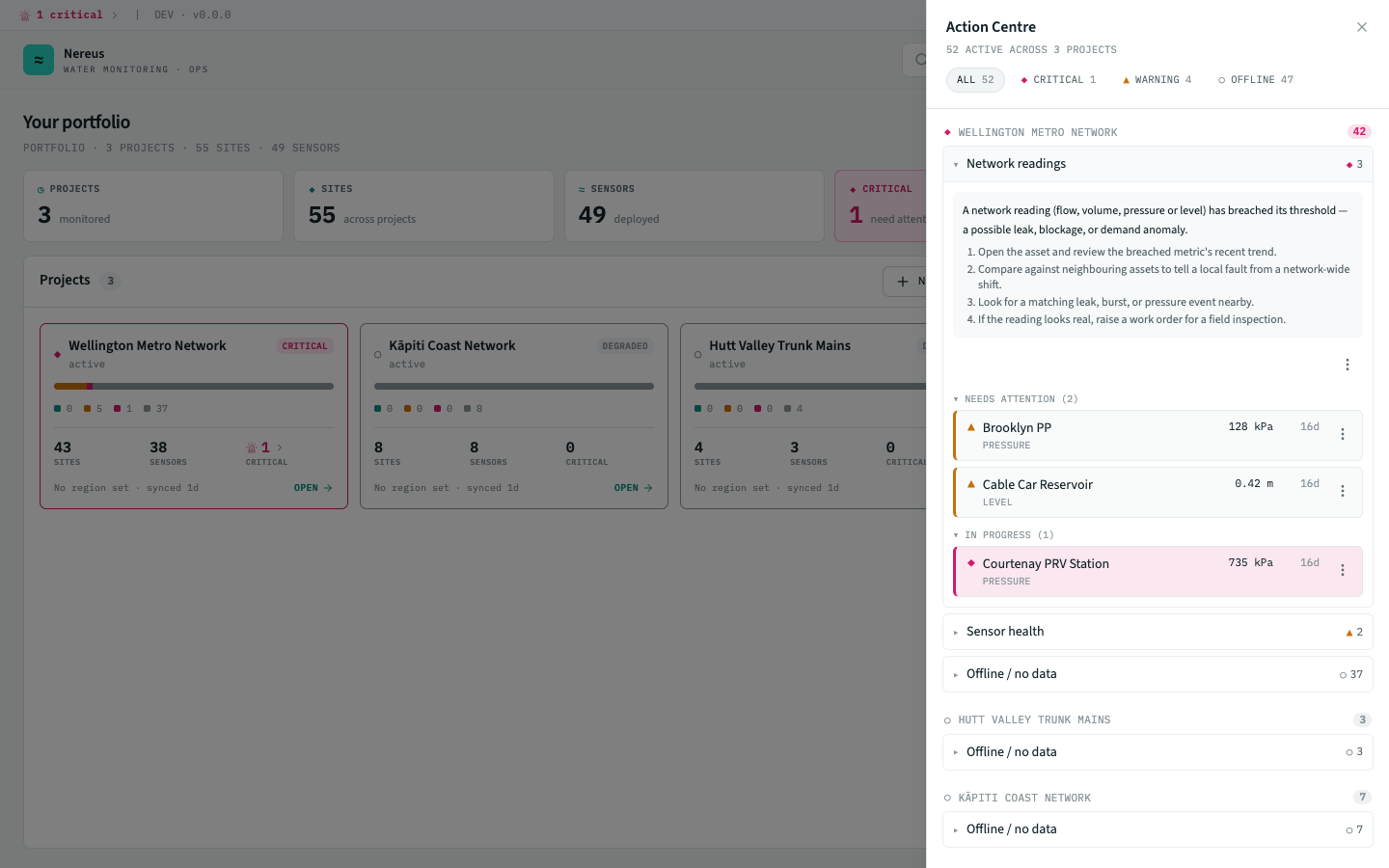
The Action Centre is a right-side sheet that gathers every active alert across your whole portfolio into one place, groups them by project and by kind, tells you what each kind means and what to do about it, and lets you acknowledge or snooze them without leaving the screen you’re on. It’s the answer to “something’s wrong — where do I start?”: open it from wherever the trouble surfaced and work top-down.
Opening it
Section titled “Opening it”The Action Centre is a global sheet, not a screen you navigate to — it opens over wherever you are, so you never lose your place. There are three ways in:
| How | Where |
|---|---|
| The Action Centre trigger — a siren mark in the header carrying a count of active alerts | Every screen, always visible |
| ⌘⇧A (macOS) / Ctrl+Shift+A (Windows · Linux) | Every screen — “A for Action” |
| A contextual opener — the siren mark with a nudging chevron | Wherever alerts roll up (see below) |
The header trigger reads as a control, not a notification bell: its badge is the tenant-wide count of open alerts, tinted by the worst severity present. Opening it this way shows your whole portfolio.
Opening it in context
Section titled “Opening it in context”The same siren mark tags every place an alert count surfaces, so those readouts double as a way into the centre — pre-focused on that project so you’re not scrolling past everything else:
- The requires-attention rail on the portfolio screen — each row opens the centre on that alert’s project.
- A project card’s critical stat — opens the centre focused on that project.
- The network health line on a project overview.
- An asset’s alerts in the asset detail panel, and the “What do I do about this?” footer on a status-map marker or cluster popover.
When you open the centre this way it shows a Showing project banner with a View whole portfolio reset — one click widens the view back out. Focus is just a filter over the same data, so switching between a project and the portfolio is instant.
Reading the grouped view
Section titled “Reading the grouped view”The centre lists alerts project → kind, worst-first. Each project is a section; inside it, alerts are bundled into kinds — Offline / no data, Leak, Burst pipe, Low battery, Threshold breach, and so on — because alerts of the same kind almost always want the same response.
At the top, a row of severity chips (All · Critical · Warning · Offline) narrows the whole tree to one severity. Each chip carries a live count; selecting one filters every group and its member alerts to match. All clears it.
Following a kind’s guidance
Section titled “Following a kind’s guidance”Click a kind row to expand it. You get two things:
- Guidance — a short explanation of what this kind of alert means, followed by a numbered runbook: the concrete steps to check, in order. This is the “what do I do?” answer, written per kind, so an offline sensor and a suspected leak give you different next moves.
- The member alerts in that group, loaded on expand and split into three segments:
- Needs attention — open, unacknowledged alerts. Start here.
- In progress — acknowledged alerts someone is already on.
- Snoozed — muted until their snooze expires (collapsed by default).
Each member row shows the target, the reading that opened it, and how long it’s been open. A large group is paginated — a +N more — view in Alerts link takes the overflow to the full Alerts queue.
Fleet setup (device typing)
Section titled “Fleet setup (device typing)”Below the alert groups you may see a Fleet setup section. It isn’t alerts — it’s a fleet-onboarding backlog: N sensors need a type and N auto-typed — confirm, the tenant-wide counts of sensors whose device type isn’t settled yet. Each is a link-out that opens the Sensors screen filtered to that worklist — a pointer, not a per-sensor list, so a couple hundred freshly-provisioned sensors collapse to one line instead of burying your real alerts. It shows only in the whole-portfolio view (not when focused on a project), and it never counts toward the header’s alert badge — typing a sensor is provisioning work, not an incident.
Acting on an alert
Section titled “Acting on an alert”Every member row has a kebab (⋮) menu. Depending on the alert and your permissions it offers:
- Acknowledge — mark an open alert as seen. It moves to In progress and stays in the queue, dimmed, annotated with your name and the time.
- Snooze 1 hour / 4 hours / 24 hours — mute the alert for a while (it moves to Snoozed). Use this when you know about it and it can wait.
- Deep-links out of the centre — View in Alerts, View rule, View on map — to dig into the timeline, the rule that fired it, or the asset’s place on the network. Which links appear depends on the kind (an event kind with no standing rule won’t show View rule).
Acting on a whole group
Section titled “Acting on a whole group”When a kind group holds several alerts you can act on all of them at once. A Group actions menu appears above the segments with Acknowledge all (N) and Snooze all … — where N is how many of the group’s alerts you’re allowed to act on.
If your access covers only some of the group (a group-scoped grant, say, that reaches one region but not another), the centre does what it can and tells you the rest: “Acknowledged 8 of 12 — 4 need access.” The server is always the authority on what you may change, so a button never lets you act beyond your grants — it just reports honestly when it stops short.
Who can act
Section titled “Who can act”Reading the Action Centre needs nothing beyond project access — Viewers see every alert, its
guidance, and the deep-links. Acknowledging and snoozing need the alert:ack permission
(Operator and above), checked per project: the row and group actions only appear where you hold
it. So a member with a grant on one project sees act buttons there and read-only guidance elsewhere,
all in the same sheet.
Related
Section titled “Related”- Alerts screen — the full alert queue, detail panel, and acknowledgement history
- Alert rules — what opens an alert, and the acknowledge → resolve lifecycle
- How to create an alert rule — author the conditions the centre surfaces
- Roles & permissions — where
alert:acksits, and how scoped grants work - Command palette & keyboard — the other global shortcut