Portfolio
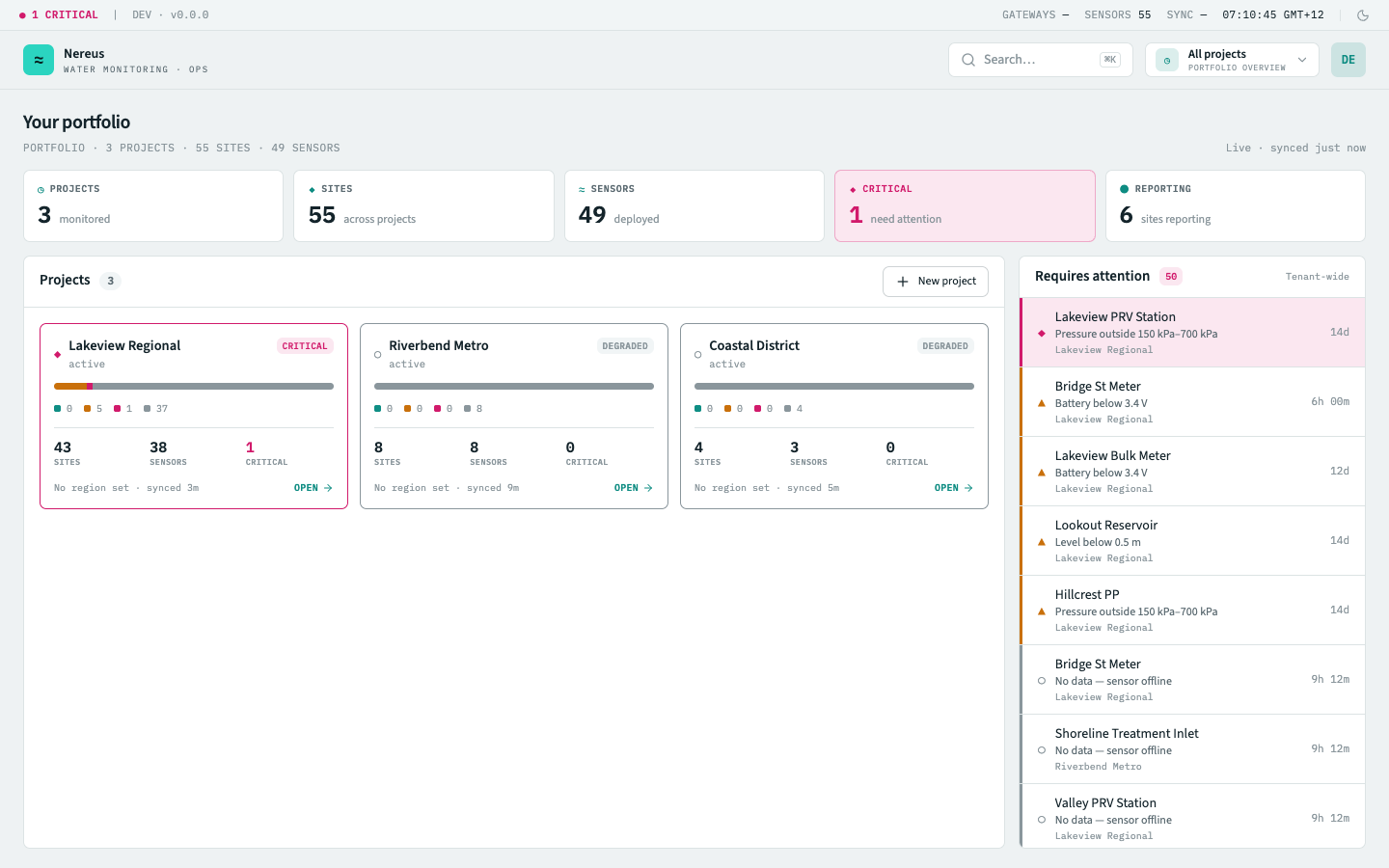
The portfolio screen is the landing page after login — a grid of project cards that gives you an at‑a‑glance view of every project you have access to. From here you open a project, create a new one, or check alert posture across the portfolio.
What you see
Section titled “What you see”Project card grid
Section titled “Project card grid”Each project appears as a card with the project name, a status strip summarising fleet health and open alerts, and a quick‑action button to open the project. Cards are organised in a responsive grid that adapts from four columns on wide screens to a single column on mobile.
Each card’s status strip shows three numbers:
| Metric | What it counts |
|---|---|
| Reporting | Active or commissioned assets that have reported within the staleness threshold |
| Of total | All active or commissioned assets in the project (planned and decommissioned excluded) |
| Alerts | Open (unresolved) alerts in the project — coloured red when count > 0 |
A card’s alert count is also a way in: clicking it opens the Action Centre focused on that project. Alongside the grid, the requires-attention rail lists the portfolio’s active alerts worst-first — each row opens the centre on that alert’s project, ready to acknowledge or snooze.
Clicking a card opens the project — the project overview dashboard becomes the active screen, and the project’s assets, groups, dashboards, alerts, and reports become available in the sidebar.
Project statuses
Section titled “Project statuses”Projects have a status that controls visibility and access:
| Status | Meaning |
|---|---|
| Active | Operational — fully visible and editable |
| Archived | Read‑only — historical data visible but no new assets, rules, or dashboards can be created |
Archived projects appear below active ones in a separate section with a muted background. They preserve all historical telemetry and alert records but are excluded from the portfolio default view until you toggle Show archived.
Create project
Section titled “Create project”The + New project button in the portfolio header opens a creation dialog. Enter a project name and the project is provisioned immediately with:
- A default Operations Overview shared dashboard (empty grid — the first user to open it adds widgets)
- The four default asset classes (water meter, pump station, reservoir, pressure point)
- A set of class‑level default alert rules (battery voltage, RSSI staleness, and reservoir low level)
- An empty group tree — the first groups are created from the assets screen
Key interactions
Section titled “Key interactions”Open a project — click any project card. The app navigates to the project overview dashboard with the project’s sidebar populated.
Create a project — from the + New project button, enter a name and confirm. The new project appears in the portfolio immediately.
Archive a project — from the project card’s overflow menu, select Archive. Prompts confirmation. The project moves to the archived section and becomes read‑only.
Search — the search bar at the top of the portfolio filters projects by name.
Related
Section titled “Related”- Project overview — what you see after opening a project
- Assets — the first thing to populate after creating a project
- Dashboards — how widgets are arranged on the project overview
- Act on alerts from the Action Centre — the requires-attention rail and card alert counts open it